Mirroring a Repository from GitLab to GitHub
You probably already know that when creating a new repository on GitHub, GitHub allows you to import a repository from another Git host.
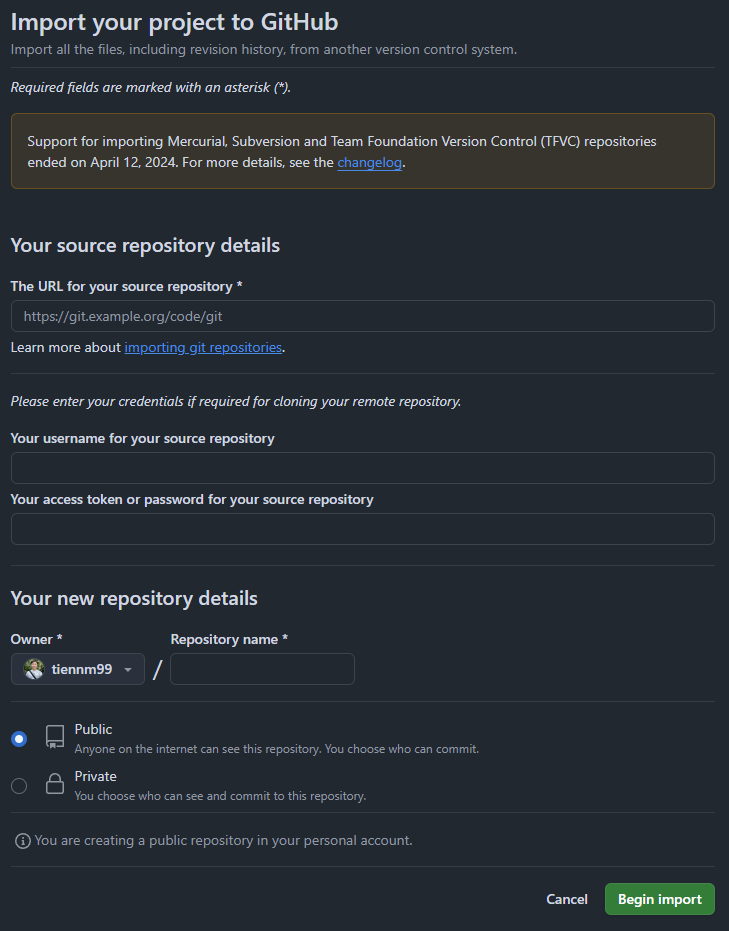
However, in some situations we want to continue pushing code updates to GitLab while keeping the GitHub repository automatically synced with the latest code. How do we do that? Today I’ll walk you through setting it up.
To set up repository mirroring from GitLab to GitHub, follow these steps:
- First, create a GitHub Personal Access Token:
- Go to
GitHub Settings>Developer settings>Personal access tokens>Fine-grained tokens: https://github .com/ settings/ personal-access-tokens - Click
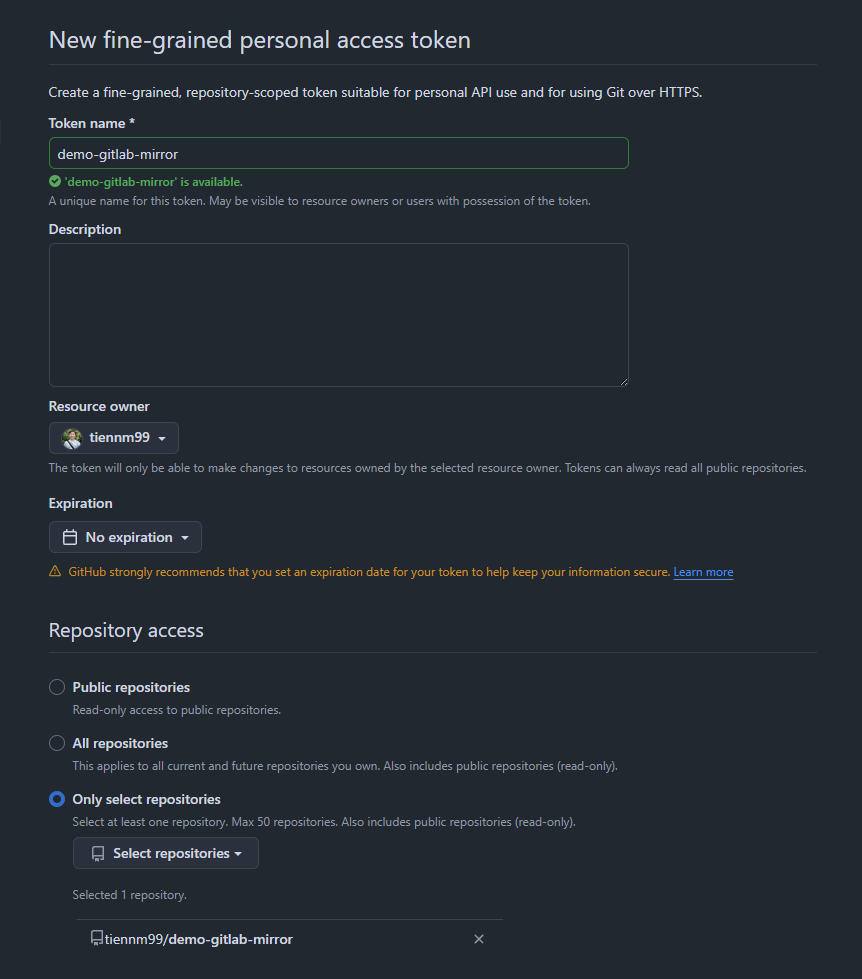
Generate new token - Give the token a name and select the required permissions:
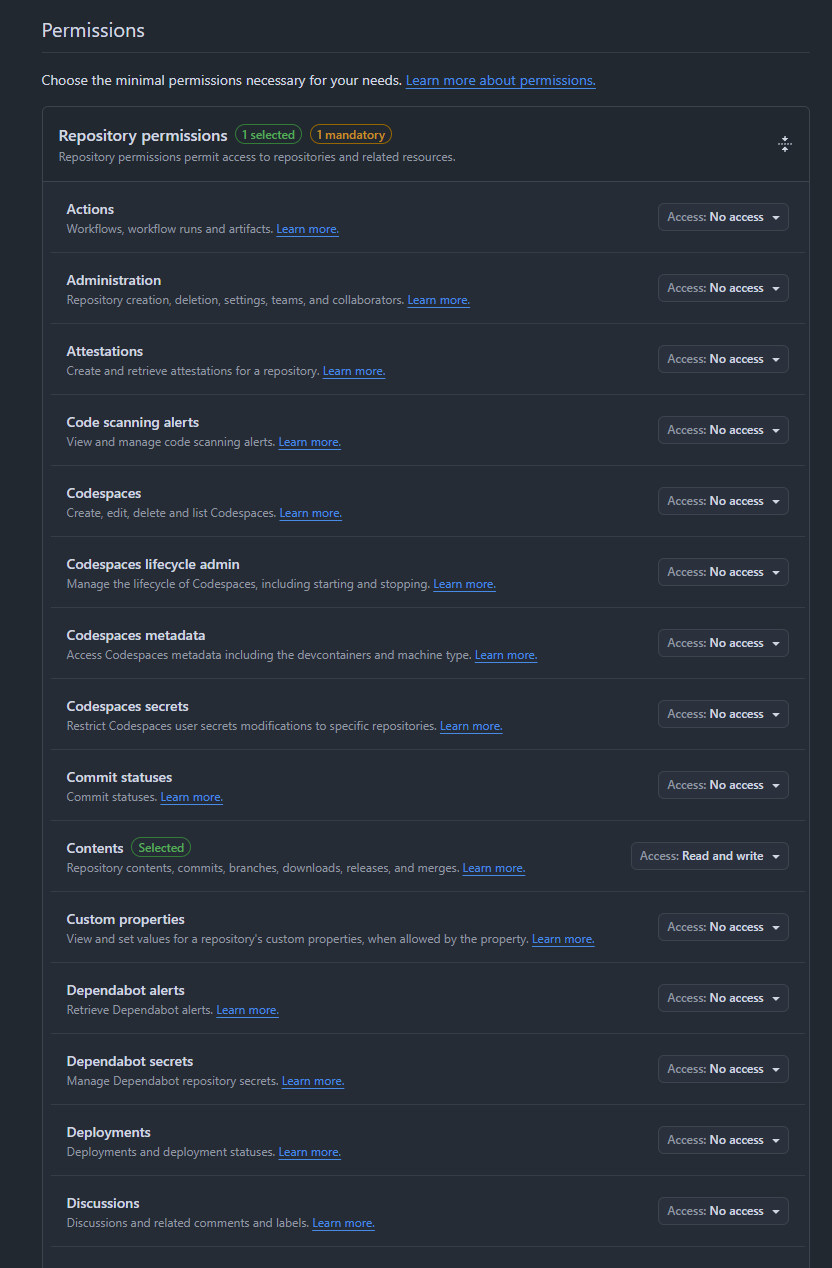
Expiration: It’s best to set a specific expiration date.Repository access: Up to you, though it’s best to selectOnly select repositories(granting access only to the specific repositories that actually need it). If you’re setting this up for many repositories under the same resource owner and don’t want the hassle of editing it later, you can consider selectingAll repositories.Permissions: UnderContents, selectAccess: Read and writeto grant read and write access to the repository.
- Copy the generated token (note: the token is only shown once)
1.1. For an Organization, you’ll need a bit of extra setup beforehand:
- Go to the organization’s
Settings. For example: https://github .com/ organizations/ ngamtheproject/ settings/ personal-access-tokens - Navigate to
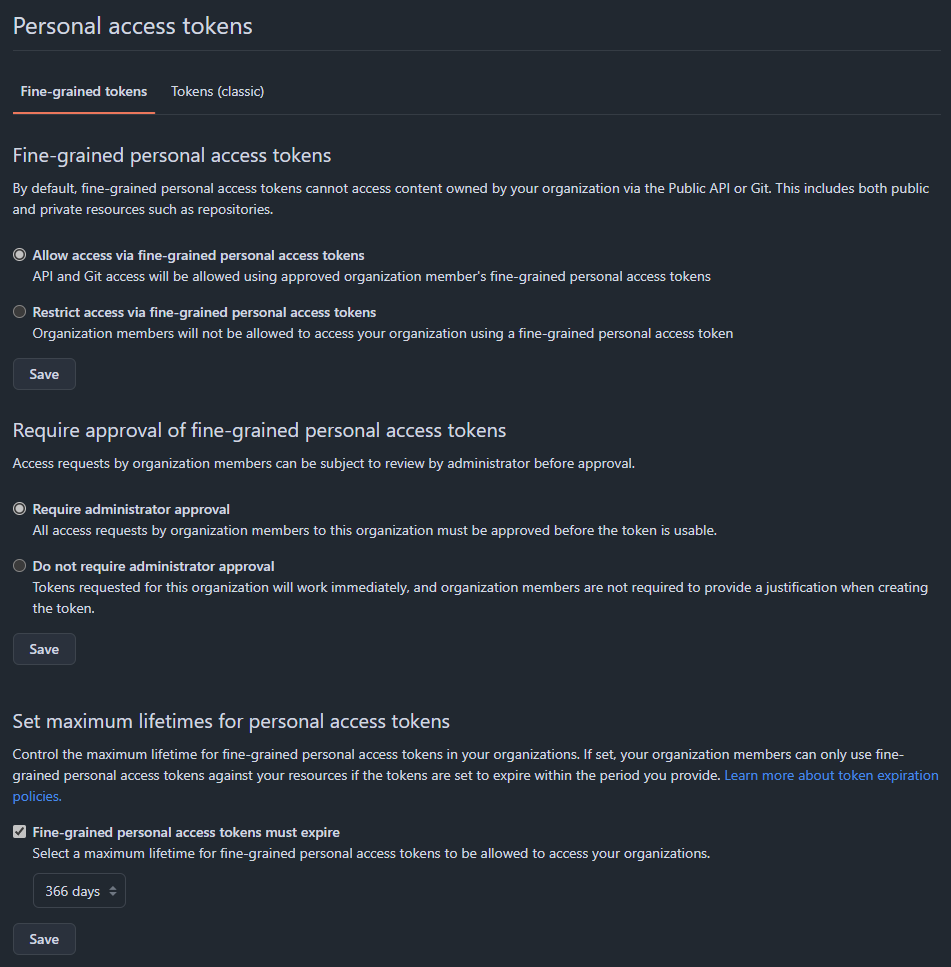
Personal access tokens, then theFine-grained tokenstab - Under
Fine-grained personal access tokens, selectAllow access via fine-grained personal access tokens - Under
Require approval of fine-grained personal access tokens, choose whichever option you prefer:- If you select
Require administrator approval, any newly created PAT will need admin approval before it works. - If you select
Do not require administrator approval, no approval step is needed.
- If you select
- Click
Saveon each section once done.
- After that, go back and create your PAT as described in step 1.
- Configure mirroring on GitLab:
- Open your project on GitLab
- Go to
Settings>Repository - Expand the
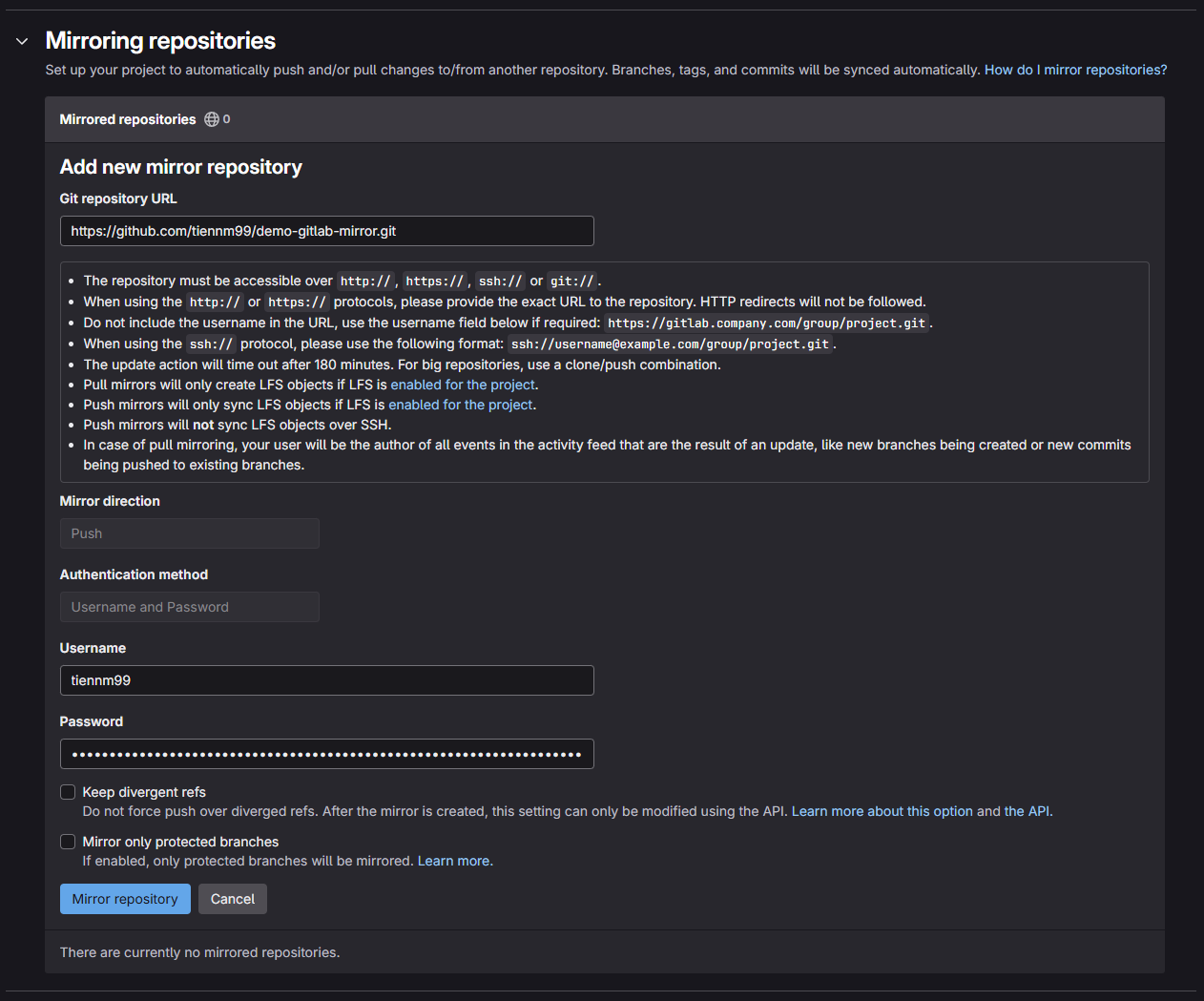
Mirroring repositoriessection. For example: https://gitlab .com/ miti99/ demo-gitlab-mirror/-/ settings/ repository#js-push-remote-settings - Click the
+button (Add new) - Fill in the details:
Git repository URL:https://github.com/GROUP/PROJECT.git(Replace GROUP and PROJECT with your GitHub username/organization and repository name. E.g.: https://github ).com/ tiennm99/ demo-gitlab-mirror .git Username: your GitHub account usernamePassword: the GitHub personal access token created in step 1
- Click
Mirror repository.
- Check the status:
Once configured, the mirrored repository will be listed with a URL like:
https://*****:*****@github.com/<your_github_group>/<your_github_project>.gitTo verify that mirroring works, you can:
- Push a new commit to GitLab
- Wait about 5 minutes (or 1 minute if “Only mirror protected branches” is enabled)
- Check GitHub to see if the commit has been synced
If you want to trigger a sync immediately, click “Update now” (the retry button)
Notes:
- The mirror will automatically sync new commits from GitLab to GitHub
- If a branch is merged into the default branch and deleted in the source project, it will also be deleted on the mirror during the next push
- If a branch has unmerged changes, it will be kept
- If a branch diverges, the “Mirroring repositories” section will display an error
References:
Comments